 Oleg Bilovus's Tech Blog
Capture Network Traffic on Mobile Devices
Capturing network traffic on mobile devices can be challenging at first, but with the right tools and methods, it becomes quite easy and extendable to other devices such as IoT devices. In this post, the focus will be on Android devices.
The capture can be done in an invasive way, where the system or applications are aware of the capture process, or in a non-invasive way, where the capture is done externally without modifying the device or applications.
Invasive Method
The Invasive Method means that the applications we want to monitor will be aware of the capture process. If we are also monitoring power consumption or hardware usage, this method will introduce some overhead due to the additional application running on the device.
Packet Capture Application
One of the most popular open-source applications is PCAPdroid, which allows capturing network traffic without root access. It creates a local VPN on the device, capturing all network traffic.
There are some limitations when using this method:
- Some applications may not work properly when a VPN is active.
- The length of each captured frame packet can be inaccurate for some analysis; sometimes it may not show the single fragmented TCP packets but the reassembled packets as one.
- There is no guarantee that all traffic is captured; some system applications may use techniques to bypass the VPN.
- ARP and other link-layer protocols are not captured; only IP traffic is captured.
However, for most use cases, this method is sufficient and easy to set up. PCAPdroid also allows capturing only specific applications, which can help reduce the amount of data captured.
Proxy
In my opinion, using a proxy is still an invasive method, as the applications being monitored and the system are aware of the proxy settings because it has to be configured on the device.
A proxy could be set up at the router level instead of the device level, but this could still be detected1.
The most popular proxy is Mitmproxy, which allows capturing and modifying network traffic. It can be used to capture HTTP and HTTPS traffic, as well as other protocols.
Non-Invasive Method
The Non-Invasive Method means that the applications and the system are not aware of the capture process. This method is more reliable as it does not introduce any overhead on the device. This method can be used for monitoring any device on the network, not just mobile devices.
The main advantage of this method is that it can capture all traffic, including ARP and other link-layer protocols. However, it cannot capture data from a single application, as it captures all traffic on the network.
OpenWRT Router with Tcpdump
The most reliable way to capture network traffic from mobile devices is to use a router with OpenWRT firmware and Tcpdump installed. This method allows capturing all traffic on the network, including ARP and other link-layer protocols.
With Tcpdump, it is possible to capture traffic from specific devices by filtering based on MAC or IP addresses.
There are multiple devices that support OpenWRT firmware, and some come out of the box with OpenWRT, such as GL.iNet routers. The main limitation of this method is the storage space on the router, as capturing all traffic can quickly fill it up. The capture can be done remotely with SSH, but the GL.iNet routers also support USB and/or SD card storage expansion.
To capture for a long time, it is better to write a system service that also manages its lifecycle in case of failure.
Below is an example of a service file saved as /etc/init.d/tcpdump_capture:
#!/bin/sh /etc/rc.common

USE_PROCD=1
START=99

PROG=/root/myservices/tcpdump.sh   # Path to the traffic capture script

start_service() {
    procd_open_instance
    procd_set_param command $PROG
    procd_set_param respawn     # Automatically restart service if it crashes
    procd_set_param stdout 1    # Redirect standard output to system log
    procd_set_param stderr 1    # Redirect standard error to system log
    procd_close_instance
}
To enable the service, run the following commands on the router:
chmod +x /etc/init.d/tcpdump_capture
service tcpdump_capture enable  # Enable the service to start on boot
service tcpdump_capture start
The script /root/myservices/tcpdump.sh could be something like this:
#!/bin/sh

set -e  # Exit immediately if a command exits with a non-zero status

now=`date +"%Y-%m-%dT%H-%M-%S"`

# Saves to external SD card in pcap directory
out="/tmp/mountd/disk1_part1/pcap/capture-$now.pcap"
echo $out

/usr/sbin/tcpdump -i wlan0 -n -w $out host 192.168.0.10 or ether host xx:xx:xx:xx:xx:xx
The above script captures all traffic from a specific device on the network, based on its IP or MAC address, and saves it to an external SD card in pcap format.
Sometimes it is desirable to view the captured traffic in real time. For this purpose, it is possible to pipe the latest captured pcap file to Wireshark running on a remote machine:
eval $(ssh-agent -s)     # Start the SSH agent
ssh-add .ssh/gl_axt1800  # Add the private key for authentication

# SSH into the router, tail the latest pcap file, and pipe it to Wireshark
ssh -i .ssh/gl_axt1800 root@192.168.8.1 "tail -n +1 -f /tmp/mountd/disk1_part1/pcap/\$(ls -t /tmp/mountd/disk1_part1/pcap/ | head -n 1)" | wireshark -k -i -
The above commands start an SSH session to the router, tail the latest pcap file, and pipe it to Wireshark running on the local machine for real-time viewing. It is recommended to use ssh-agent to avoid entering the password multiple times. If the agent is not used, the last command will not work until the password is entered.
Port Mirroring / SPAN
If a router with OpenWRT is not an option, another way to capture network traffic is to use a managed switch with port mirroring or SPAN (Switched Port Analyzer) feature. This method allows capturing all traffic from a specific port on the switch and sending it to another port where a capture device is connected.
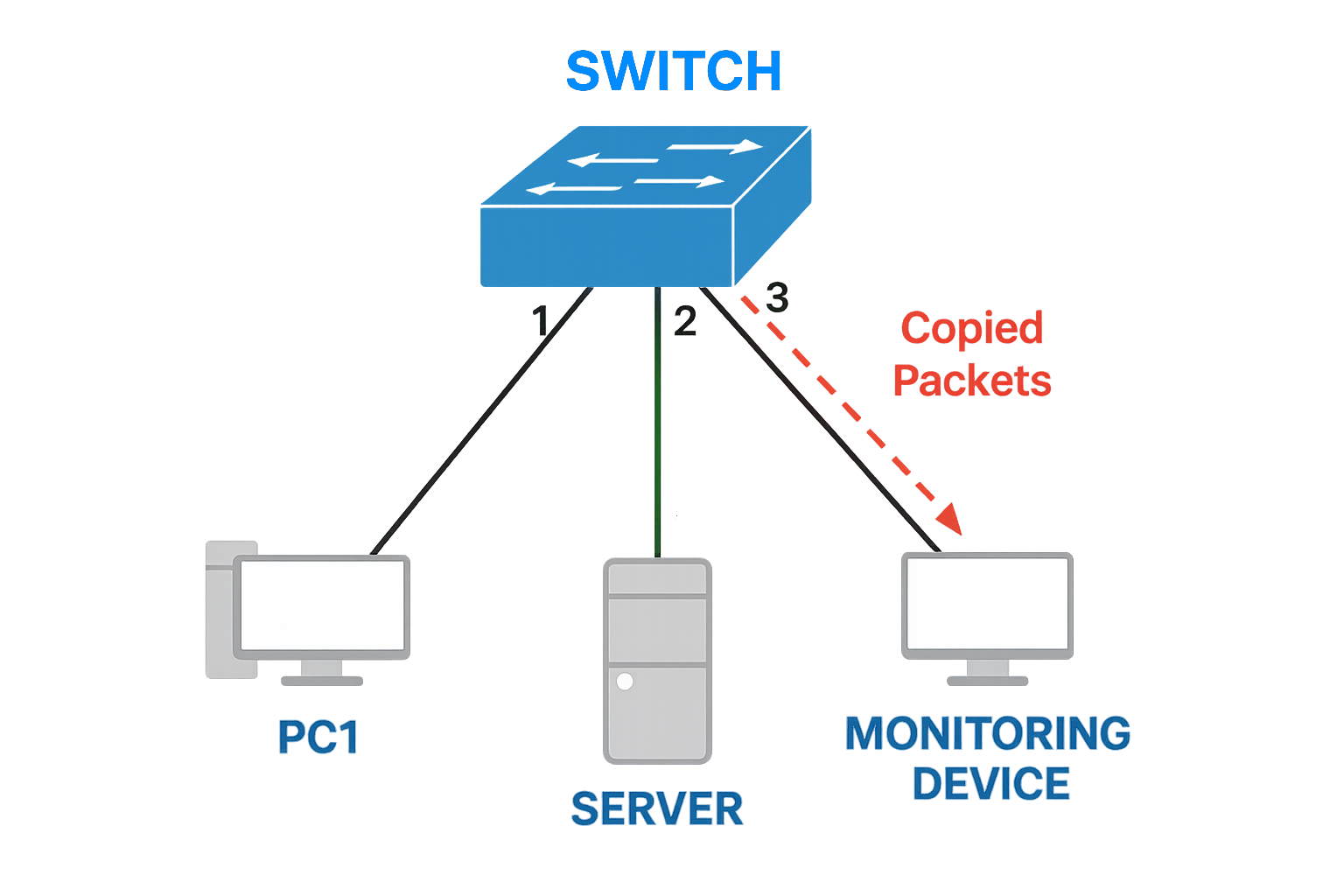
There are very cheap managed switches that support port mirroring, such as the TP-Link switches. The setup is quite simple, but care must be taken to avoid creating loops in the network or duplicating traffic.
Throwing Star LAN Tap
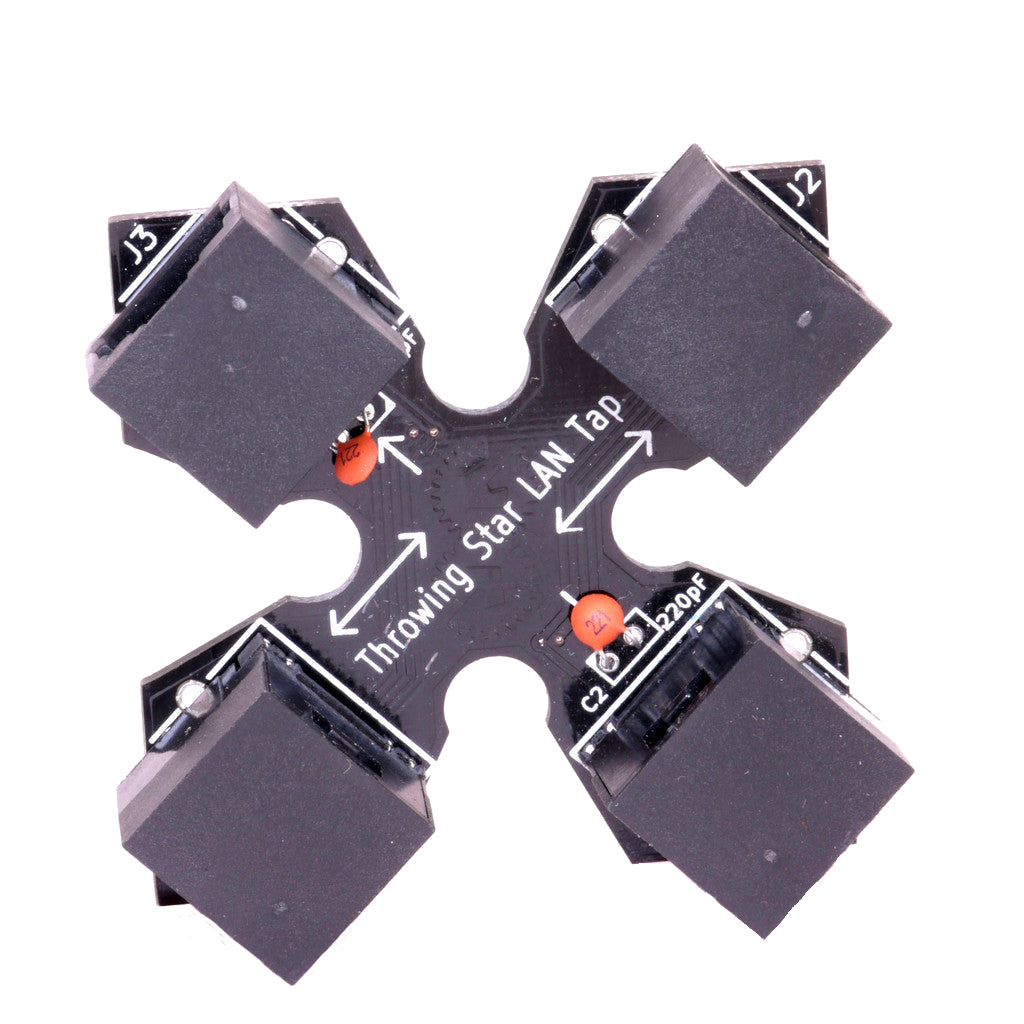
Another option to capture network traffic is to use a LAN Tap. These devices can be purchased or built at home. A LAN Tap is a device that sits between the device being monitored and the network, allowing you to capture all traffic without modifying the device or the network. An example of a LAN Tap is the Throwing Star LAN Tap from Great Scott Gadgets.
Decrypting HTTPS Traffic
When capturing network traffic, most of it will be encrypted using HTTPS. To decrypt HTTPS traffic, it is necessary to install a custom root certificate on the device being monitored. This can be done by exporting the certificate from the capture tool (e.g., Mitmproxy) and installing it on the device.
With recent versions of Android, it is necessary to configure applications to trust user-installed certificates, as by default they only trust system-installed certificates. This can be done by modifying the network security configuration of the application with tools like apk-mitm.
If the device is rooted, it is possible to install the custom root certificate as a system certificate, which will be trusted by all applications, or use tools like Magisk Trust User Certs, which simplify the process.
Bibliography
-
Towards Aggregated Features: A Novel Proxy Detection Method Using NetFlow Data," 2020 IEEE 22nd International Conference on High Performance Computing and Communications_, pp. 409-416, 2020. IEEE Xplore ↩︎